On this page
- What Is an FC 27 Icon Squad File?
- FC 27 Icon Squad File Download (2026)
- How to Install an FC 27 Icon Squad File on PC
- Can You Use an FC 27 Icon Squad File in Career Mode?
- How to Play with Icons in FC 27 Career Mode Without Mods
- FC 27 Icon Squad File Compatibility by Game Mode
- Does the FC 27 Icon Squad File Work on PS5, PS4, Xbox, or Nintendo Switch?
- FC 27 Icon Squad File Not Working? Common Problems and Fixes
- What File Format Does an FC 27 Squad File Use?
- Is It Safe to Download an FC 27 Icon Squad File?
- FC 27 Icon Squad File FAQ
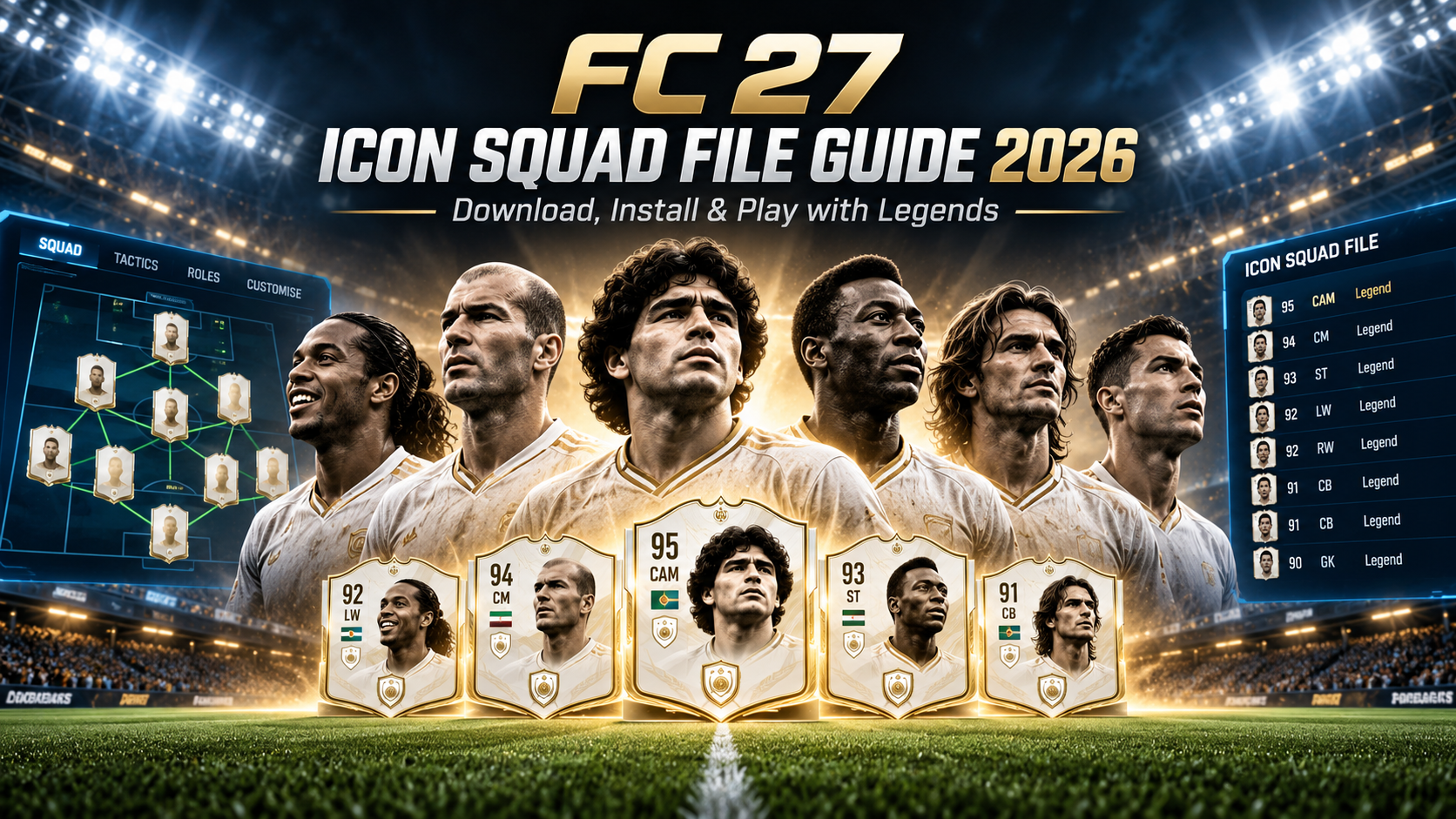
Want to play with legendary footballers in EA SPORTS FC 27? An FC 27 Icon squad file can unlock additional classic players and teams for offline matches on PC, allowing you to enjoy football legends who are not normally available in standard Kick Off squads.
EA SPORTS FC 27 was officially released on September 25, 2026. Since its launch, community modders have released custom squad files featuring Icons, Heroes, classic teams, and other hidden players.
One example is Wiktor2b’s FC 27 Icons, Heroes & Hall of Fame Squads File, published on FIFA Infinity Mods on October 17, 2026. This guide explains where to download it, how to install it, which game modes it supports, and how to fix common problems.
Quick Answer: PC players can download a compatible FC 27 Icons squad file, copy it into %LOCALAPPDATA%\EA SPORTS FC 27\settings, and load it through the game’s squad-loading menu. However, not all custom Icons work in Career Mode. Many community Icon squad files are designed primarily for offline Kick Off matches.
What Is an FC 27 Icon Squad File?
An FC 27 Icon squad file is a custom roster that changes which players and teams are available in EA SPORTS FC 27.
Regular squad files typically update transfers, player ratings, team assignments, and formations. Custom Icon squad files can go further by unlocking legendary footballers and classic teams already represented in the game’s data.
Depending on the creator, an FC 27 Icon squad file may include:
- Icons: Legendary footballers from different generations.
- Heroes: Former players celebrated for memorable performances and achievements.
- Classic teams: Special squads containing retired football stars.
- Hidden players: Footballers whose data or models exist in the game but are not normally selectable in standard squads.
- Free Agents: Certain legendary players who can be transferred to eligible clubs.
- Additional player versions: Alternative versions of certain Icons, depending on the squad file.
Important: A squad file does not automatically unlock every Icon in every game mode. Its functionality depends on how the creator configured the roster and which restrictions EA SPORTS FC 27 applies.
FC 27 Icon Squad File Download (2026)
As of October 2026, one available community-created option is Wiktor2b’s Icons, Heroes & Hall of Fame squad file.
FC 27 Icons, Heroes & Hall of Fame Squads File
| Information | Details |
|---|---|
| Game | EA SPORTS FC 27 |
| File Name | FC 27 Icons, Heroes & Hall of Fame Squads File |
| Creator | Wiktor2b |
| Published | October 17, 2026 on FIFA Infinity Mods |
| Platform | Windows PC |
| Primary Use | Offline Kick Off and exhibition matches |
| Career Mode | Limited compatibility; not all Icons are available |
| Installation | Copy the squad file into the FC 27 settings folder and load it in-game |
Download Page: FC 27 Icons, Heroes & Hall of Fame Squads File – FIFA Infinity Mods
Creator’s Original Thread: Wiktor2b’s FC 27 Icon Squad File
What Does This Squad File Include?
According to the creator, the file unlocks additional legendary players for offline play while preserving the game’s existing classic teams.
Its features include:
- Additional Icons and Heroes from Football Ultimate Team made accessible in offline squads.
- The hidden European XI classic team.
- A FUT Icon team containing female legends, available through the custom/classic team selection.
- Existing EA SPORTS classic teams retained in the roster.
- Additional legendary players in the Free Agents pool.
- Selected unused or alternative Icon versions found in the game’s files.
The creator has also discussed hidden or alternative versions of players such as Ronaldinho, Zinedine Zidane, David Beckham, Lev Yashin, and Jay-Jay Okocha.
Not every player can be transferred into an ordinary club. Some Icons are assigned to classic teams, and duplicate player records can create problems when making transfers.
Recommendation: Use this file primarily for offline exhibition matches unless you have independently confirmed that the specific players you want are compatible with Career Mode.
How to Install an FC 27 Icon Squad File on PC
Installing a compatible FC 27 squad file generally requires copying the downloaded roster into the correct Windows folder and loading it through the game.
Step 1: Download the Squad File
- Open the download page linked above.
- Read the creator’s description and check for updates or compatibility notes.
- Download the squad file from the creator’s provided link.
- If the file comes in a ZIP or RAR archive, extract it first.
- Locate the actual squad file inside the extracted folder.
Keep the original squad filename unless the creator explicitly instructs you to rename it. Do not assume that the file must have a .json, .txt, or .squads extension.
Step 2: Locate the FC 27 Settings Folder
On Windows, press Windows + R to open the Run dialog.
Enter the following path:
%LOCALAPPDATA%\EA SPORTS FC 27\settings
Press Enter.
The directory normally corresponds to:
C:\Users\[YourUsername]\AppData\Local\EA SPORTS FC 27\settings
Replace [YourUsername] with your Windows account name if entering the full path manually.
If you cannot see the AppData folder, open File Explorer and enable View > Show > Hidden items.
If the settings directory does not exist, launch FC 27, create and save a local squad or profile where supported, close the game, and check the directory again.
Step 3: Back Up Your Existing Files
Before modifying your squad data, make a backup of your existing settings and relevant game saves.
- Close FC 27 completely.
- Open the settings directory.
- Copy your existing squad files and any other files you intend to modify to a separate backup folder.
- Keep this backup outside the active FC 27 settings directory.
This allows you to restore your previous roster if the new file causes errors or contains changes you do not want.
Step 4: Copy the Icon Squad File
- Open the extracted download folder.
- Find the squad file supplied by the creator.
- Copy it into the FC 27 settings directory.
- Confirm that you placed the actual squad file there rather than the ZIP or RAR archive.
- Avoid overwriting your existing files unless necessary and backed up.
Step 5: Load the Squad File in FC 27
- Launch EA SPORTS FC 27.
- Open the main menu.
- Go to Settings or Customize.
- Find Profile > Load Squads, or the equivalent squad-loading option under Edit Teams, depending on your menu layout.
- Select the custom squad file from the available list.
- Confirm that you want to load the selected squads.
For Wiktor2b’s release, the creator refers to the custom file as WikKoc. Look for the corresponding entry when selecting the roster.
Step 6: Apply the Creator’s Additional Instructions
For the Wiktor2b squad file, the creator also recommends opening Settings > Edit Teams > Transfers, selecting a club, and then returning to the main menu after loading the roster.
Follow the creator’s instructions for saving the active roster.
When entering Kick Off, make sure Live Form or live squad updates are turned off at the team selection screen if the game offers that option. Otherwise, the game may use updated online squads instead of the custom roster.
Step 7: Test the Icons in Kick Off
- Open Kick Off.
- Navigate through the available leagues and teams.
- Look for the custom or classic teams described by the file creator.
- Select a supported team containing Icons.
- Start an offline match to test whether the legendary players appear.
Some custom teams may appear in a classic or custom section rather than the normal league list. The exact location depends on the file and game interface.
Can You Use an FC 27 Icon Squad File in Career Mode?
Not necessarily. Loading an Icon squad file does not guarantee that every legendary player will become available in Manager Career or Player Career.
The Wiktor2b squad file focuses on classic teams and offline exhibition matches. The creator has explained that transferring Icons from classic teams into ordinary clubs is restricted and can cause compatibility problems.
Only certain players placed in the Free Agents pool may be transferable through the standard interface. Even then, availability in Career Mode is not guaranteed.
How to Try a Custom Squad File in Manager Career
If the squad file explicitly supports Career Mode, follow these steps:
- Load the custom squads from the main menu.
- Start a new Manager Career.
- Choose the option to use Current Squads rather than downloading the latest squads.
- Complete the initial Career Mode setup.
- Check the relevant clubs and Free Agents pool for the modified players.
These steps apply only to compatible squad modifications. They do not bypass restrictions on classic teams or unlock Icons that the game does not permit in Career Mode.
Important: Squad changes generally need to be applied before starting a new Career Mode save. Loading another squad file will not automatically modify the players in an existing career.
How to Play with Icons in FC 27 Career Mode Without Mods
You do not necessarily need a custom squad file to use Icons in FC 27 Career Mode.
EA officially supports legendary footballers in both Player Career and Manager Career, with additional Icons becoming available to unlock throughout the game’s seasons.
EA identified several legends for Season 1, including:
- Kaká
- Antonio Di Natale
- Alessandro Del Piero
- Raúl
- Robin van Persie
Availability depends on the relevant unlock conditions, game edition, rewards, and season content.
Using Icons in Player Career
- Open Career Mode from the FC 27 main menu.
- Select Player Career.
- Look for the Select Icon Player option.
- Choose an available or unlocked legendary player.
- Complete the career setup and begin playing.
If a particular Icon is unavailable, check whether it requires an unlock or is offered through current seasonal content.
Using Icons in Manager Career
FC 27 also supports Icons and Heroes in Manager Career through official in-game content.
Check the available Career Mode rewards, seasonal progression, and Icon selection options to determine which legends you can use.
Unlike community squad files, official Career Mode Icon content is integrated into the game’s supported progression system.
For more information, see the official FC 27 Launch Update.
FC 27 Icon Squad File Compatibility by Game Mode
| Game Mode | Custom Icon Squad File Support | Important Notes |
|---|---|---|
| Kick Off (Offline) | Yes, with compatible files | The main intended use of Wiktor2b’s classic squad file. |
| Manager Career | Limited | Some modified players may work, but classic-team Icons are not automatically available. |
| Player Career | Not a guaranteed unlock method | Use FC 27’s official Icon Player feature for supported legends. |
| Tournament Mode | Limited | Classic teams cannot necessarily be selected in tournaments. |
| Football Ultimate Team | No | Local squad files do not grant online FUT Icon items. |
| Clubs and Other Online Modes | No supported local roster import | Custom offline rosters do not replace server-controlled online squads. |
Does the FC 27 Icon Squad File Work on PS5, PS4, Xbox, or Nintendo Switch?
The installation instructions above are intended for Windows PC versions of FC 27.
PlayStation, Xbox, and Nintendo Switch do not provide the same straightforward access to a Windows-style game settings folder.
Copying a PC squad file to a USB drive and connecting it to a console is not a standard, supported installation method. Console save files can be platform-specific, encrypted, or tied to individual user accounts.
For console players, the recommended option is to use EA’s officially supported Icons and Heroes where available in Career Mode or other game modes.
FC 27 Icon Squad File Not Working? Common Problems and Fixes
1. The Squad File Does Not Appear in Load Squads
Possible causes: The file is in the wrong directory, remains compressed, or is not a compatible FC 27 squad file.
How to fix it:
- Close FC 27.
- Check the directory:
%LOCALAPPDATA%\EA SPORTS FC 27\settings. - Extract the downloaded archive if necessary.
- Copy the actual squad file into the settings folder.
- Keep the filename recommended by the creator.
- Restart FC 27 and check Load Squads again.
Files designed for FC 26, FC 25, or another game are not automatically compatible with FC 27.
2. Icons Are Missing After Loading the File
Possible causes: The game is using the default roster, the wrong squad file was loaded, or the Icons are assigned to classic teams rather than normal clubs.
How to fix it:
- Return to the squad-loading menu.
- Load the downloaded file again.
- Open Kick Off.
- Disable Live Form or live squad updates where available.
- Check the classic and custom team categories.
- Read the creator’s instructions for the exact location of the additional teams.
If only a few Icons appear in Free Agents, this does not necessarily mean the file is broken. Some legends are assigned to separate classic teams.
3. Icons Appear in Kick Off but Not Career Mode
Cause: The custom Icons may belong to classic teams or use records that are not supported in Career Mode.
How to fix it:
- Check whether the creator explicitly supports Manager Career.
- Look for compatible players in the Free Agents pool.
- Start a new Career Mode save using Current Squads if the file supports that mode.
- Use the game’s official Icon unlock system if the required legend remains unavailable.
There is no guaranteed menu setting that converts every Kick Off Icon into a Career Mode player.
4. The Squad File Stops Working After an Update
Possible causes: FC 27 has downloaded a newer official roster, a title update has changed compatibility, or the custom roster is no longer active.
How to fix it:
- Back up your existing saves.
- Check the mod creator’s page for an updated version.
- Reload the custom squad file if it remains compatible.
- Avoid downloading another roster update immediately before creating a custom Career Mode save.
- Test the file in an offline Kick Off match.
Different squad files may react differently to title updates. Compatibility with one game version does not guarantee compatibility with every future patch.
5. The Game Crashes When Loading the Icon Squad
Possible causes: An incompatible roster, damaged download, conflicting game modifications, or an unsupported player/team configuration.
How to fix it:
- Exit the game completely.
- Move the custom squad file out of the settings folder.
- Restore your backed-up squad files.
- Launch FC 27 and check whether the issue disappears.
- If the game works normally, download a compatible version from the original creator.
- Test the squad file without other optional mods.
If crashes continue even without the custom file, use your game platform’s repair or file-verification feature.
6. Players Have Missing Faces or Incorrect Appearance Data
Cause: Some hidden or unused player versions do not include complete presentation assets in the current game files.
How to fix it: Check whether the creator offers a revised squad file or additional compatible assets.
Wiktor2b has noted that some alternative Icon versions may be missing player portraits. A missing portrait does not necessarily mean the player model itself is unusable.
What File Format Does an FC 27 Squad File Use?
FC 27 squad files are not normally ordinary JSON or TXT documents that players can edit directly in Notepad.
The game uses structured roster and save data stored in a game-specific format. On PC, squad files may use names such as Squads20261006000000 without a conventional file extension.
Custom modded squad files can use different names, including names selected by their creators.
Unlike a simple text document, the game-readable squad format contains structured data that requires the appropriate tools to modify correctly.
A squad file may contain or reference information such as:
- Player identifiers and names
- Positions and player ratings
- Player attributes and abilities
- Team assignments and transfers
- Squad selections and tactical data
- Player appearance and presentation references
Do not rename a JSON example or text document to resemble an FC 27 squad file. Changing a filename extension does not convert it into a valid game-readable roster.
Is It Safe to Download an FC 27 Icon Squad File?
Community squad files are unofficial modifications, so users should take reasonable precautions before installing them.
- Download from the original creator or a reputable modding community.
- Check the publication date and supported FC 27 game version.
- Read user comments for reported issues.
- Scan downloaded files using updated security software.
- Back up your original squad and Career Mode saves.
- Avoid installers that request unnecessary administrator privileges.
- Do not disable security protections simply to run an unverified download.
- Keep unofficial modifications separate from online competitive modes.
A squad file from a community website is not automatically endorsed, tested, or supported by EA.
FC 27 Icon Squad File FAQ
Is there an FC 27 Icon squad file available for download?
Yes. Community modder Wiktor2b released an FC 27 Icons, Heroes & Hall of Fame squad file in 2026. It can be found through FIFA Infinity Mods and the creator’s Soccer Gaming forum thread. Its main purpose is to make additional legendary players available in offline matches.
Where do I put the FC 27 squad file on PC?
For the standard Windows installation, place the compatible squad file in %LOCALAPPDATA%\EA SPORTS FC 27\settings. Then load it through FC 27’s squad-loading menu.
Can I use all Icons in FC 27 Career Mode?
No. Although FC 27 officially supports selected Icons in Career Mode, a community squad file does not guarantee access to every legendary player. Some custom Icons are restricted to classic teams or offline exhibition matches.
Can I transfer Icons to any club in FC 27?
Not always. Some Icons in community rosters can be assigned to clubs through the normal transfer interface, particularly when they appear in Free Agents. Others belong to classic teams and may be unavailable for regular transfers.
Can I use an FC 27 Icon squad file in an existing Career Mode save?
Usually not. Career Mode saves generally retain their own starting database and progression data. To apply a compatible custom roster, you typically need to load it first and start a new career using Current Squads.
Does an FC 27 squad file unlock Icons in Ultimate Team?
No. Football Ultimate Team uses online player items and server-controlled progression. A local custom squad file cannot grant free FUT Icons, Heroes, packs, or other online rewards.
Can I use FC 26 Icon squad files in FC 27?
Do not assume they are compatible. Different game releases can use different database structures, player IDs, assets, and save formats. Download a file specifically developed or converted for FC 27.
Are FC 27 Icon squad files free?
Some community-created squad files are distributed for free. Availability and download conditions depend on the creator. Check the original release page rather than assuming every file or modification is free.
What is the difference between an official squad update and an Icon squad file?
An official squad update is provided by EA and focuses on supported roster changes such as transfers and ratings. A community Icon squad file is an unofficial modification designed to make additional legendary players, classic teams, or hidden content accessible in supported offline modes.
What is the easiest way to play with Icons in FC 27?
For PC players interested in classic offline matches, a compatible community Icon squad file is one option. For players interested in Career Mode, EA’s official Icon Player and Manager Career features are generally the more straightforward choices.
About the Author