On this page
- 1. Create the Missing Downloads Folder (Official Fix)
- 2. Restart the Launcher and Check the Installation Location
- 3. Uninstall and Reinstall Palia
- 4. Fix OS Error 3 on Steam
- 5. Check Windows Security and Antivirus Software
- 6. Run the Palia Installer as Administrator
- 7. Contact Palia Support if the Error Continues
- Frequently Asked Questions
Palia’s “The system cannot find the path specified. (os error 3)” is a Windows installation or launcher error that usually indicates the game cannot locate a required folder or file. It may appear while installing, updating, or launching Palia.
According to Palia’s official support documentation, one of the primary fixes is to restore a missing Downloads folder inside the game’s launcher directory. If that does not work, a clean reinstallation may resolve the issue.
1. Create the Missing Downloads Folder (Official Fix)
This is the first solution recommended by Palia Support for OS Error 3.
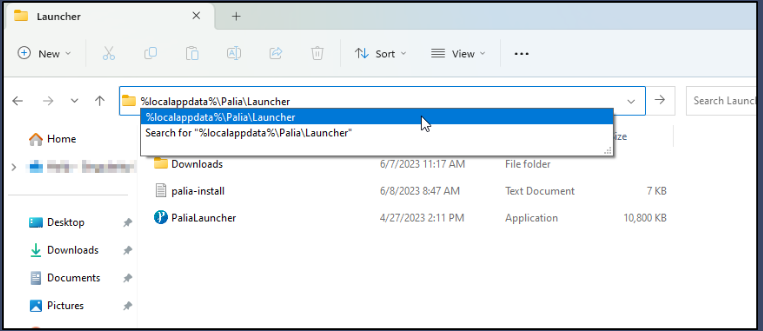
- Close Palia and its launcher completely.
- Press Windows + R to open the Run dialog, or open File Explorer.
- Copy and paste the following path into the address bar:
Official Palia launcher path
%localappdata%\Palia\Launcher
- Check whether a folder named Downloads exists inside the Launcher directory.
- If it is missing, right-click an empty area, select New > Folder, and name it Downloads.
- Restart the Palia launcher and try installing or updating the game again.
The resulting directory should be:
%localappdata%\Palia\Launcher\Downloads
Important: The original article contained an incorrect folder path. The correct location includes \Palia\Launcher, as specified in the official Palia FAQ. If the entire launcher directory is missing, proceed to the reinstallation instructions rather than creating an arbitrary installation structure.
2. Restart the Launcher and Check the Installation Location
If creating the Downloads folder does not solve the problem, close the launcher and check whether the game is installed in an accessible location.
- Open Task Manager with Ctrl + Shift + Esc and end any remaining Palia processes.
- Restart the computer and launch Palia again.
- If Palia is installed on a secondary or external drive, confirm that the drive is connected and its drive letter has not changed.
- If you moved or renamed the installation folder manually, reinstall the game using a valid installation directory.
A missing or changed installation path can prevent Windows from finding the game executable.
3. Uninstall and Reinstall Palia
Palia Support recommends a clean installation when the original launcher files are damaged or conflicting.
- Open Windows Settings > Apps > Installed apps (Windows 11), or Apps & features (Windows 10).
- Find Palia and select Uninstall.
- After uninstalling, press Windows + R and enter %localappdata%.
- Locate the Palia folder. If it remains, delete the residual installation files after verifying that the folder belongs to Palia and that you have backed up any local files you wish to retain.
- Check other drives for any remaining files from the affected standalone installation.
- Restart your computer.
- Download the installer from the official Palia download page .
- Run the installer and install the game again.
For more detailed instructions, refer to the Official Palia Uninstallation Guide .
4. Fix OS Error 3 on Steam
If you installed Palia through Steam, use Steam’s file verification feature rather than relying on the standalone Palia launcher’s Downloads folder.
- Open Steam and go to your Library.
- Right-click Palia and select Properties.
- Select Installed Files.
- Click Verify integrity of game files.
- Wait for Steam to finish checking the installation and downloading any required replacement files.
- Launch Palia again.
Steam officially recommends this procedure for repairing missing or corrupted game files.
If Palia still fails to launch, check the game’s Steam library location under Steam > Settings > Storage and confirm that the drive is available.
5. Check Windows Security and Antivirus Software
Antivirus software can sometimes quarantine game files, leaving the launcher unable to find them. This is another possible cause of missing-file errors, although it is not the specific fix listed in Palia’s OS Error 3 FAQ.
Open Windows Security > Virus & threat protection > Protection history and look for any recent detections involving Palia. If a file has been quarantined, verify its authenticity before restoring it. Do not disable antivirus protection indiscriminately.
Steam also provides guidance on handling confirmed false-positive detections.
6. Run the Palia Installer as Administrator
If the error persists and you are using the standalone installer:
- Find the official Palia installer.
- Right-click it.
- Choose Run as administrator.
- Approve the Windows permission prompt.
- Attempt installation again.
Palia Support includes administrator access among its general installation troubleshooting recommendations. However, insufficient permissions are more directly associated with OS Error 5, so this is a secondary troubleshooting step rather than the primary solution for OS Error 3.
7. Contact Palia Support if the Error Continues
If none of these methods works, submit a support ticket through the Palia Help Center .
Include the full error message, your Windows version, whether you use Steam or the standalone launcher, and the troubleshooting steps you have already attempted.
Standalone launcher users can also check for the installation log at:
%localappdata%\Palia\Launcher\Cache\palia-install.log
Attach the log if it exists. Palia’s official installation guide recommends providing installation logs to help support staff diagnose persistent problems.
Frequently Asked Questions
What does OS Error 3 mean in Palia?
OS Error 3 means Windows cannot find a specified file system path. In Palia, it commonly relates to missing launcher folders, inaccessible installation directories, or damaged installation files.
What is the fastest way to fix Palia OS Error 3?
For the standalone launcher, open %localappdata%\Palia\Launcher and create the Downloads folder if it is missing. This is Palia’s officially documented first fix.
Does OS Error 3 mean Palia’s servers are down?
No. OS Error 3 is primarily a local file-path error, not proof of a Palia server outage.
Should I reinstall Palia immediately?
Not necessarily. Try the missing Downloads folder fix first. Steam users should verify their installed game files before attempting a full reinstallation.
Does this error affect Nintendo Switch, PS5, or Xbox?
The specific Windows OS Error 3 message discussed here concerns PC file paths and installations. Palia is also available on Nintendo Switch, PlayStation 5, and Xbox Series X|S, but those consoles use different installation and troubleshooting systems.
About the Author